


























































Using Microsoft Power BI astutely and efficiently gets harder the more you aim to achieve with it. Once you have established it as the tool of choice to deliver business insights to your organisation, it will quickly grow and its use proliferate across departments.
At first glance MS Power BI makes it very easy to import large amounts of data from disparate sources and create fabulous reports, without involving IT or other infrastructure. However, before long the ease of use that enabled such a fast development becomes its own undoing.
Without careful planning and awareness of the consequences of decisions made early on, a Power BI dataset can soon become slow and hard to maintain.
Luckily there are a few tools out there that can help with performance tuning and other tasks that will bring datasets and models back under control.
1. DAX Studio, What Is It?
DAX Studio is a free, open-source tool that connects to Microsoft Power BI datasets, SQL Server Analysis Services (SSAS), and Excel PowerPivot models — giving analysts and developers a dedicated environment to write, debug, and optimise DAX queries and monitor dataset performance.
If your Power BI reports are running slowly, your data model has grown unwieldy, or you simply want to write better DAX, DAX Studio is one of the most valuable tools in your toolkit. This guide covers what it does, why it matters, and how to get started.
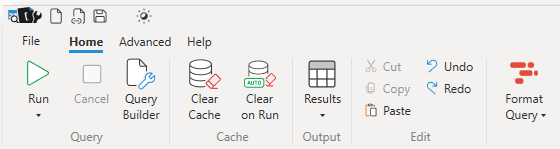 The home menu of DAX Studio
DAX Studio is a free third-party tool released under the Microsoft Permissive Licence. It connects directly to:
- Power BI Desktop (local datasets)
- Power BI Service (published datasets via XMLA endpoint)
- SQL Server Analysis Services (SSAS) — Tabular and Multidimensional
- Excel PowerPivot models
Download it from the official site: daxstudio.org. It is updated regularly to keep pace with new Power BI features.
Despite its name, DAX Studio goes well beyond DAX formula editing. It is a comprehensive performance analysis platform that helps you understand your data model at a deeper level than Power BI Desktop alone allows.
2. Analysing DAX with DAX Studio
As its name implies, DAX Studio is very useful for writing and editing DAX formulas/statements. It comes with an updated list of all DAX functions in an easy to browse library and as you type it gives you the same hints and tips that MS Power BI’s Intellisense does.
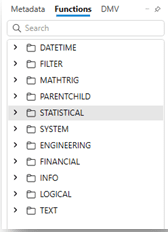 DAX Studio function library
You can use the query builder in DAX Studio to write new DAX statements or to analyse existing ones from your data model.

Once you have DAX formulas you are happy with and that run well in DAX Studio you can copy them back to the MS Power BI model and then update the metadata in DAX Studio to see them as part of the model.
3. Analysing Queries in DAX Studio
Beyond DAX there is also the opportunity to analyse and tune query performance in DAX Studio. Using the Query Builder panel you can create the same sorts of queries that your visualizations will contain in MS Power BI and then check their performance.
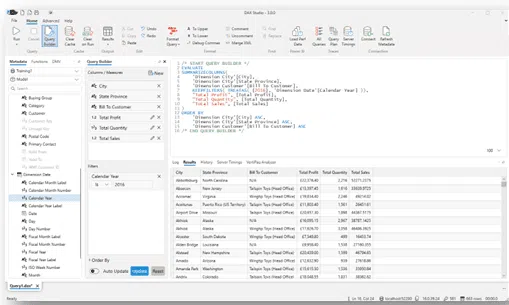
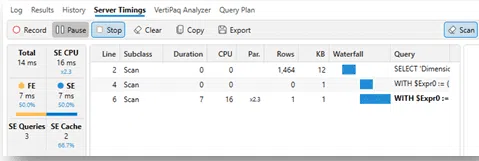
This sort of analysis helps immensely with identifying long-running queries and will provide insight into their causes. Slow-to-load reports and visuals will turn off users and prevent them from engaging with your analysis.
4. Other Performance Analysis
Aside form DAX and query performance, DAX Studio can also give you insight into the overall health of the dataset you are connected to, and also import performance data from MS Power BI’s own Performance Analyzer tool.
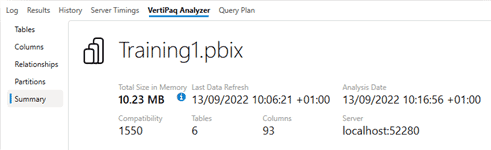
Summary of a dataset’s metadata
The VertiPaq Analyzer tool shed light on the size of and potential problems with the dataset and data sources, showing details of the tables columns and relationships between them.
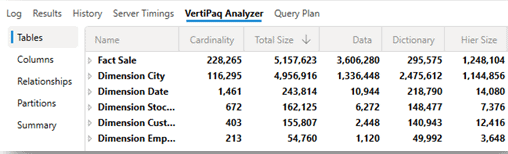
Summary of table sizes
At its heart MS Power BI Desktop is keeping all of the imported data and calculations in a compressed in-memory database while you work on it. So this can place great strain on your PC or laptop’s resources if you are trying to make updates to a large dataset.
Using DAX Studio to identify the size and cardinality of the data you are working with can flag areas where resources will be stretched.
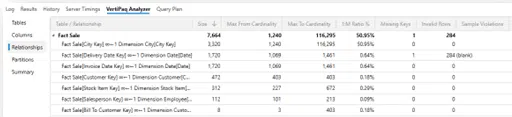
Summary of table relationships
It can also help identify data issues such as missing keys or null values.
In summary DAX Studio is an easy to use tool that will be invaluable for more sophisticated users of Power BI.
Not all MS Power BI issues or questions can be solved with DAX Studio though. If you have a question or are seeking advice then get in touch with us at Codestone – we’re experts in data, analytics and BI solutions!
5. Why Power BI Users Need DAX Studio
Microsoft Power BI makes it easy to connect data sources, build relationships, and create compelling reports — often without IT involvement. That low barrier to entry is one of its greatest strengths. But it becomes a liability as your models grow.
Common problems that emerge in maturing Power BI environments include:
- Reports and visuals that take too long to load
- DAX measures that are difficult to debug inside Power BI Desktop
- Data models with high cardinality columns consuming excessive memory
- Missing relationship keys or null values that silently distort calculations
- No visibility into why a query is slow
DAX Studio addresses all of these. It does not replace Power BI — it works alongside it, providing the diagnostic depth that Power BI Desktop does not expose natively.
Key Features of DAX Studio
1. DAX Formula Writing and Debugging
DAX Studio provides a full-featured query editor with IntelliSense-style autocomplete, a browsable function library, and syntax highlighting. You can write new DAX measures and queries, or paste in existing ones from your data model to test and refine them.
The function library panel lists every DAX function with descriptions and argument hints, making it easier to explore functions you may not have used before. This is particularly useful when writing complex measures involving CALCULATE, FILTER, ALL, USERELATIONSHIP, or time intelligence functions.
Once you have a measure performing correctly in DAX Studio, you copy it back into your Power BI model and refresh the metadata in DAX Studio to see it reflected in the connected model.
Tip: Use DAX Studio to test measures against large datasets before committing them to your model. It saves significant time compared to iterating within Power BI Desktop itself.
2. Query Performance Analysis
The Query Builder panel lets you construct the same queries your report visuals generate, then measure how long they take to execute. DAX Studio breaks query execution into three phases:
- Formula Engine (FE) — the high-level DAX evaluation
- Storage Engine (SE) — the lower-level data retrieval
- Cache hits — whether results were served from cache
Understanding this split helps you pinpoint whether a slow visual is caused by a poorly written DAX measure (Formula Engine issue) or by data volume and model design (Storage Engine issue). These require very different remediation approaches.
The Server Timings panel displays a detailed breakdown of each query execution, making it straightforward to identify the costliest operations.
3. VertiPaq Analyzer — Dataset Size and Health
Power BI Desktop stores imported data in VertiPaq, a compressed in-memory columnar database. When you work on a large model, this places significant strain on your machine’s RAM. DAX Studio’s VertiPaq Analyzer gives you full visibility into what is consuming that memory.
The VertiPaq Analyzer shows you:
- Table sizes — rows, data size, and dictionary size
- Column cardinality — the number of distinct values per column, which directly impacts compression and memory usage
- Relationship details — identifying missing keys, inactive relationships, and cross-filter direction
- Potential optimisation opportunities — columns with unexpectedly high cardinality that could be simplified or removed
High-cardinality columns (such as free-text fields or timestamp columns with millisecond precision) are a frequent cause of bloated models and slow performance. VertiPaq Analyzer makes them visible at a glance.
4. Power BI Performance Analyzer Integration
Power BI Desktop includes its own Performance Analyzer, which records the time taken for each visual on a report page to load. DAX Studio can import this performance data directly, allowing you to see the underlying DAX queries that each visual generated and analyse them in the same environment.
This integration closes the loop between what users experience (slow visuals) and the technical root cause (inefficient queries or model design).
How to Get Started with DAX Studio
- Download and install DAX Studio from daxstudio.org. It is a Windows application.
- Open your Power BI Desktop file first, then launch DAX Studio. It will detect the running Power BI instance automatically.
- Connect to your model by selecting the Power BI Desktop instance from the connection dialogue.
- Browse your model using the metadata panel on the left, which lists all tables, columns, and measures.
- Run your first query — start with a simple
EVALUATEstatement against one of your tables to confirm the connection is working. - Use the VertiPaq Analyzer (under the Advanced menu) to get an immediate overview of your model’s memory footprint.
For published datasets in the Power BI Service, you will need the XMLA endpoint, which requires a Power BI Premium or Premium Per User licence.
Common Use Cases for DAX Studio in Power BI Projects
- Debugging a measure that returns unexpected results — test it in isolation against known data
- Optimising a slow dashboard — import Performance Analyzer data and identify the worst-performing visuals
- Auditing a dataset before migration or handover — use VertiPaq Analyzer to document the model structure
- Training and learning DAX — the function library and immediate query feedback make it an excellent learning environment
- Reducing model size — identify and remove high-cardinality columns that are not needed in reports
Limitations of DAX Studio
DAX Studio is a powerful diagnostic and authoring tool, but it does not do everything. It cannot:
- Build or edit report layouts, visuals, or dashboards
- Modify data source connections or Power Query (M) transformations
- Publish reports to the Power BI Service
- Replace Power BI Desktop for day-to-day report development
It is best thought of as a specialist companion tool rather than a standalone alternative to Power BI.
Getting Expert Help with Power BI Performance
DAX Studio is invaluable for experienced Power BI developers, but understanding what the diagnostics are telling you — and knowing what to do about it — requires deeper expertise in data modelling, DAX optimisation, and the VertiPaq storage engine.
At Codestone, our Microsoft Power BI specialists work with organisations to build performant, maintainable data models from the ground up. Whether you are dealing with a slow legacy dataset, planning a new Power BI deployment, or need training for your team, we can help.
We also offer broader data strategy and business intelligence services, including SAP Analytics Cloud, SAP BusinessObjects, and CCH Tagetik for financial planning and consolidation.
Get in touch with our team to discuss your Power BI challenges.


